Watch Video Overview

How Parents Get an Account:

Once you have completed enrollment registration with the school,

you should receive an email Invitation to access MySchoolWorx.

(Invitations are sent automatically upon approval of your enrollment registration.)

 Use the link in the email to sign in to MySchoolWorx for the first time.


If you have not received an email inviation to create a user name and password,

please contact your school's office.

Click above to view in our knowledgebase.

First Time Logging in:

If you've already established your MySchoolWorx account by

accepting the invitation and creating a password, then you are ready to log in.

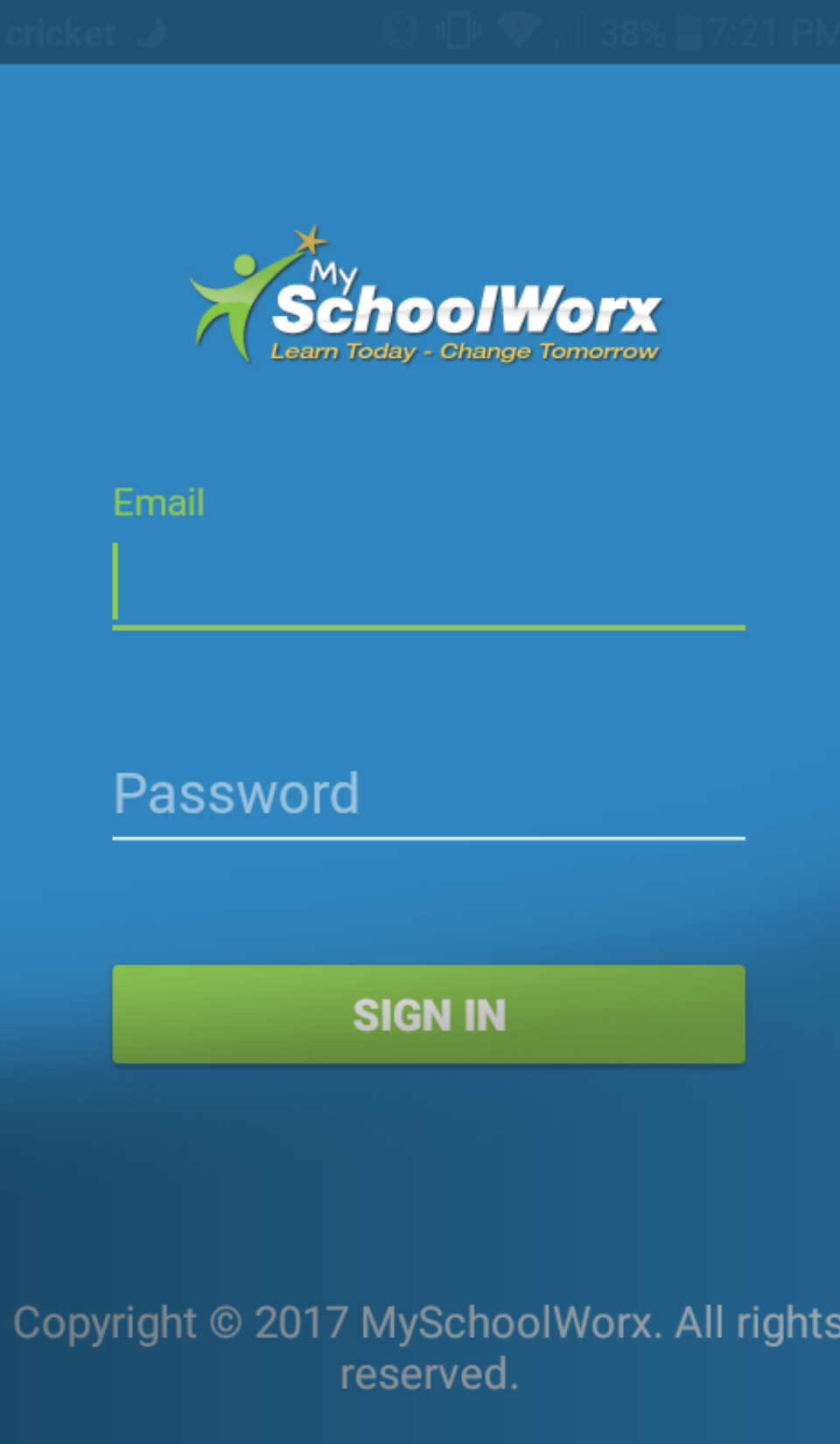
From a tablet or laptop computer browser, go to:  portal.myschoolworx.com to open up MySchoolWorx. (or, click the blue "Log in" button at the top of this page)

Enter your email address and password to log into MySchoolWorx.

FORGOT YOUR PASSWORD?  Just press the blue "LOST PASSWORD" button on the login page and you can reset your password.

Try it now:

Key Features Tour

Your Dashboard

This is your "home" page.  It contains a snapshot of what's inside MySchoolWorx and a menu to help you get around.

Use the colorful icons across the top menu bar to find your way around.

At the top right, you'll see if there are any messages waiting for you in "ALERTS".

Grades & Attendance: In the middle of the page, you'll see a snapshot of your child's grades and attendance.

parents

how-to video

Assignments & Events: At the bottom, you will see the calendar and a list of any upcoming assignments for your child.

Messaging Teachers or Admins:

Communicate with the school - "Messaging" works just like regular email inside MySchoolWorx - without the clutter of your email inbox!

Get/Read  Messages

Access: Press the "messages" icon at the top of your dashboard to open the messaging center.

View: a list of messages from your child's teacher and school administrators.

Read: Press "subject" to open and read emails and their attachments. 

Send Messages &

Attachments

Create: Press "Compose Message" to send messages to teachers or admins.

Type: in the person's name in the "to" box and what your message is about in the "Subject" box, then add your message in the big box below.

* File attachments include items such as PDF's, Scanned Documents, Images, Word files, etc..


Press here to see how to submit completed homework to a specific assignment.

Add attachments* such as images or PDF files click the word "attach"  above the "to" box, then find your document and press send.

Set Custom Alert Notifications

Set Custom Alerts to Get Notifications on what's most important to you.

Message Alerts are brief, special notifications sent to parents about important things.

Activate: When you turn them on, the system posts a notification in the Alert icon at the top menu. The number of unread messages waiting for you can be seen in a small red circle by the Alert icon.

Alert Types: You can choose what types of Alerts you receive on your student:

  • Assignments
  • Attendance
  • Calendar
  • Discipline/Behavior
  • Reports
  • Messages

Get Alerts in your email inbox: You can opt to have your custom alerts sent to your external email account, to your account in MySchoolWorx, or both.

Find  Homework Assignments Quick

Stay on top of your child's homework assignments and projects!

Snapshot:  No need to navigate - a short list of upcoming assignments is at the bottom of your dashboard

Press on the name of the assignment and a pop up with the assignment details will appear (including any attachments for study guides or worksheets).

Download attachments: If the teacher includes a worksheet or a guide,  you can press on the attachments to download, then save, read or print.

More details: You can get more details on assignments by pressing the "Homework" button at the top of the dashboard.

This will display assignments for you to view by day or week.

Print a Homework List: You can also print a copy of your scheduled homework assignments.

Submit Completed Homework Assignments

Students can submit assignments from anywhere with MySchoolWorx...

Press the CLASSES icon from top menu.

Select the class you want to submit homework for from the grid of classes displayed on the page.

Choose: from the list of items in the gray bars, and select "ASSIGNMENTS" to view more info about that assignment.

View Assignment details for that class...

Upload Assignments: You can "Drag and Drop" a file from your device to the area shown - OR - you can press the "add File" BUTTON to search for your file and upload from there.

Find Lesson Plans

Following lesson plans helps parents stay engaged in what their kids are learning...

Access:  Press the "Class"  icon at the top of your dashboard.

View by Class: A grid of classes will appear.

Press the icon for the class you want to view lesson plans for...

Lesson Plans: A list of assignments and grades for that class will appear. Scroll down to the bottom and press the gray bar titled 

" Lesson Plans".

View by Date: Your Lesson Plans will appear by date.

Extra Resources: Now click the next gray bar under lesson Plans titled "Resources".

There you can find attachments like study guides, worksheets, videos and other materials your teacher may have posted for this lesson for you to download.

View Grades by Class, Subject and Assignment

Monitor your child's progress on assignments, quizzes, and tests by class, subject and time period...

GPA

Live Report Card: From your dashboard, view the middle column titled "Live Report Card" to see current grades for that Class or Subject

Details: To see individual grades for specific assignments, tests, and quizzes in that class, press on the class name to open and view.

Grades by Category: View your child's overall grade for this class or subject under their name, then see individual grades for each Test, Quiz or Assignment underneath.

Category weight: See how much each of those categories contribute to the overall grade in the far right column on the page.

more info parents

how-to video

Review & Sign Report Cards

Following lesson plans helps parents stay engaged in what their kids are learning...

Access: From your dashboard, click the "Reports" icon to open up Report Cards.

View: List of reports for multiple grading periods.

Select:  Press "View Report Card" to view a specific report card.

Acknowledge: Confirm you've viewed it and sign per your school's policy.

more info view

report cards

Calendar Shows Class & School Events

Don't miss a thing! Stay informed on class and school-wide events with the Calendar...

Instant View: A snapshot of calendar events is displayed on your dashboard. You can click on any event to get more info, or...

Press the "Calendar" icon at the top menu bar to display the full calendar.

On the full calendar, you can view details of an event by lightly rolling over it with your cursor or finger 

You can even choose to view by Class or Type (Holidays, Events or assignments) by using the "Select" dropdowns above the Month Title.

watch this parents

how-to video

Get the MySchoolWorx Mobile App for Your Phone

FREE: The Mobile App is free! You can download it from the Apple store or Google Play store and then access the MySchoolWorx Calendar and Messaging straight from your phone.

  • Important: You must have established a MySchoolWorx Account with your school in order to log into and use the mobile app.
  • Your login credentials are the same as the full version of MySchoolWorx.

app preview video

Get it here:

ANDROID DEVICES

APPLE DEVICES

Accounts: Pay Tuition & Other School Invoices *

Enjoy the convenience of paying tuition online with confidence through MySchoolWorx and Intuit.

* Pay tools are optional features in MySchoolWorx; check with your school admin to see if activated.

Access Your Account: From your dashboard, press the green "Account$" icon to open up your payment account with the school for tuition and other fees.

View Invoices: In the  Account: Tuition/Purchases screen, see a snapshot of outstanding inoices; press the purple "view" link to view a specific invoice.

Choose Pay method & Pay: The quickbooks window displays your invoice pay options and allows you to enter your pay details, then press "Pay" bar to pay.

View Paid Invoices: Next time you log in, your account will show your tuition invoice as paid in "Account$".

Placing Lunch Orders

Placing lunch orders through MySchoolWorx is a special optional feature some schools choose to activate, based on their unique needs. Check with your school admin to see if they offer it.

Press the Brown Lunch Bag to access lunch orders. 

To order for your student, use the +/- buttons to select the menu item and quantity you'd like. 

Submit: Once you have made your selections for every day, click the "Submit Lunches for This Week" button at the top left of the menu to complete your orders for the week. 

Edit Your Order: If you need to edit your items for any future day, click the Edit button in the blue header bar for that day to edit. The menu will re-open, and you can use the +/- button to change your selections. 

Save: Once you've changed your menu items, click the orange "Save" button at the bottom of that day.

Cancel entire order: If you need to cancel a day's order completely, click the - button next to each item that was selected until the number is set to 0, then Save.

Multi-student families: If you are placing lunch orders for multiple students, select the student from the drop-down menu in the top-right corner of your portal. After submitting that student's lunch order, switch to the next student and repeat the process until all lunch orders have been submitted.

Questions? Get Instant How-to's...

Click the icon to the right to view commonly asked questions and answers in our knowledgbase.

Click icon above for article.

Computer Tips / FAQ

Some parents may be activating an old computer for their child to use for learning at home during the pandemic. Here are some FAQ's on access via computers that you may find helpful:

What Browser should I use to access MySchoolWorx from a computer?

You can access MSW from most browsers, however old versions of Explorer and even Edge can create browsing issues. Chrome and Safari provide the best experience.

How Do I Stop My Browser From Auto-populating Old Passwords?

If you haven't cleared your "cache" (your browsing history) in a while, old passwords and other data can auto-fill when you try and enter a password or complete a form. >stop that from happening

How Do I Clear My Cache  to Improve My Computer or Device's Performance?

Similar to above, if you haven't cleared your "cache" (your browsing history) in a while,  it can impact your experience using apps your kids need for learning. > here is how to clear your cache

How Do I Turn off my "Pop-up Blocker"?

Some of the things you do on MySchoolWorx require a pop-up. If your pop-up blocker is active in your browser, you will need to turn it off before being able to do certain things, like print. 

>here's how to turn off your pop-up blocker.

Where can I get assistance for a computer or Internet access at home?

There are some freebies and big discounts available to help parents obtain a home computer or internet service.  We've compiled a shortlist of a few -  all subject to availability in your area. 

Scroll down this page to  "Extras for Parents"  for resources on home computers & internet service.

###

Freebies & "Extras" for Parents

Computer & Internet Freebies, Discounts &  Resources for Parents & Students

Internet Access & Computers

Software and Apps

INTERNET SERVICE:  The following organizations offer free and discounted internet service programs. Coverage and terms vary.

SOFTWARE:  These software tools and apps are available for free use, some always, some for a limited time during the coronavirus quarantine.

COMPUTERS:  The following organizations provide assistance for obtaining a laptop or computer:

MySchoolWorx FAQ:

Top Parent Questions

If you are a first-time-user of MySchoolWorx, you may find these FAQ's helpful.

How Do I Get a MySchoolWorx Account?

Invitations to join MySchoolWorx are sent to parents when your school administrator provides us your email address. If you don't have an invitation from MySchoolWorx in your email inbox, >contact us

Help! I Forgot My Password. How Can I Get a New Password to Get Into MySchoolWorx?

Go to the login page, press the  blue "LOST PASSWORD" button > learn more

Where Can I Find My Child's Homework Assignments?

The quickest way is to check the "Upcoming Assignments list on your MySchoolWrox Dashboard. 

You can also press "Homework" on the top menu and "Calendar" (where assignments automatically post when a teacher publishes them.  Your child's teacher may also Message them to you (check your messages in the Message" button. Assignments can also be found on the Calendar in the mobile app.  >learn more

Where Can I Find Lesson Plans?

You can find your child's lesson plans in MySchoolWorx by going to the "Class" tab in the main menu of your dashboard  > here's more/how

How Do We Send In Completed Homework From Home?

Go to the "Messages" tab on your menu in MySchoolWorx and Compose a message, then press "Attach" and search for your file on your computer and save - then send your message.   > here's how

Why Does What I Title Homework Documents Matter? (Naming Files)

As a rule, file names should be free of symbols or they could give you headaches when you try and share them. Symbols are characters like %, $, #.  (Example of a problem file name: "Hannah's Essay#8"  vs. "HannahEssay_8") .That's why some programs, like Microsoft Word, for example, restrict what characters you can use to name a document to text and numeric characters. Your teacher/school may have a required naming style for students to use. If not, It's generally best to keep document names text only. Just leave the symbols out. :-)

What File Format Type Should I Save My Assignments To Before Attaching?

Everyone's computer operating system and office software programs are different. Word, Google Docs, Pages, Notepad, etc. Some are more common than others and your teacher/school may request a specific program to write it in. If not, no matter what program you wrote your paper in, save it as a PDF file before sending it. Most everyone can open and read a PDF file. To do this, click "Save As" and choose PDF.  

Log into MySchoolWorx Now

MySchoolWorx Copyright 2026